

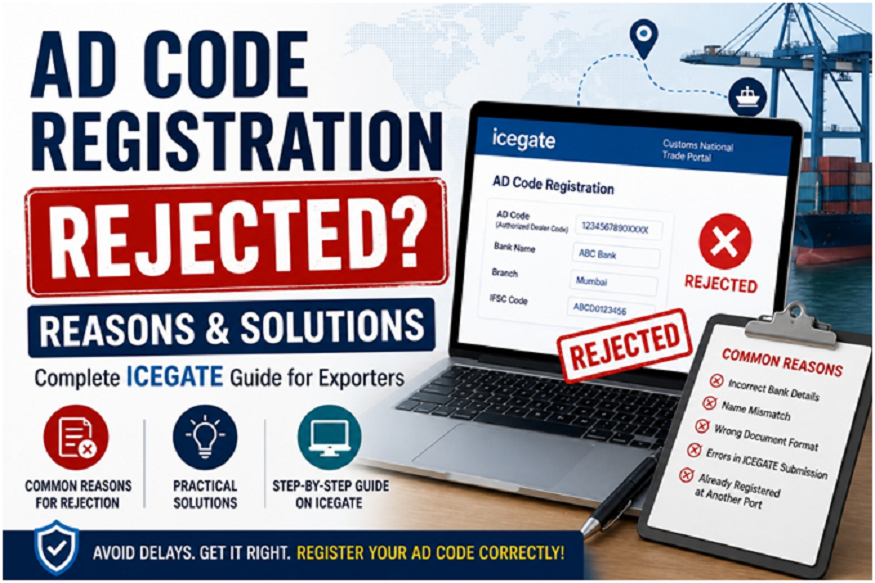
If your Ad Code registration on ICEGATE has been rejected, you’re not alone. Many exporters in India face this issue due to small errors in documentation, bank details, or portal submission.
The Ad Code (Authorized Dealer Code) is essential for export clearance, and without successful registration, your shipments can get stuck at customs. If you’re new to export documentation, you can also explore our detailed guide on Certificate of Origin and DGFT processes to understand how documentation impacts export approvals:
In this guide, we’ll explain the common reasons for Ad Code rejection, how to fix them, and the correct process to register Ad Code in ICEGATE.
What is Ad Code in Export?
The Ad Code is a 14-digit number issued by your bank (authorized dealer) that links your export transactions with customs and foreign exchange tracking.
It is mandatory to register your Ad Code at the port through the ICEGATE Ad Code registration system before exporting goods.
Common Reasons for Ad Code Registration Rejection
Understanding why your Ad Code registration is rejected is the first step to fixing it.
1. Incorrect Bank Details
Wrong IFSC code
Account number mismatch
Bank branch details not matching
2. Name Mismatch Between Documents
IEC name ≠ Bank account name
Business name ≠ GST registration
3. Improper Ad Code Letter Format
Missing bank seal/signature
Incorrect format issued by bank
Old or outdated letter
4. Errors During ICEGATE Submission
Wrong port selection
Incorrect document upload
Incomplete application
5. Ad Code Already Registered at Another Port
Ad Code is port-specific
Needs separate registration for each port
6. IEC Not Updated or Linked
IEC not active
ICEGATE account not properly linked
How to Fix Rejected Ad Code in ICEGATE
If your ICEGATE Ad Code registration is rejected, follow these steps:
Read More: Leading Industrial Engineering Company
Step 1: Identify the Rejection Reason
Log in to ICEGATE and check the rejection message carefully.
Step 2: Correct the Errors
Update bank details
Fix name mismatches
Get a revised Ad Code letter from your bank
Step 3: Reapply for Ad Code Registration
Submit a fresh application through Ad code registration on ICEGATE with corrected details.
Step 4: Verify Documents Before Submission
Double-check:
Bank certificate
IEC details
GST details
Step-by-Step: How to Register Ad Code in ICEGATE
Here’s the correct process to avoid rejection:
1. Login to ICEGATE Portal
Use your registered IEC credentials.
2. Go to Bank Account Management
Select “AD Code Registration”.
3. Enter Bank Details
IFSC Code
Account Number
Bank Name
4. Upload Ad Code Letter
Ensure it is properly signed and stamped.
5. Submit Application
After submission, customs will verify your details.
Documents Required for Ad Code Registration
Keep these ready:
Ad Code letter from bank
Import Export Code (IEC)
GST certificate
PAN card
Authorization letter (if applicable)
Important Tips to Avoid Rejection
Always match IEC, GST, and bank details exactly
Use the correct Ad Code letter format
Register separately for each port
Double-check all entries before submitting
Read More: Why Invest in Custom Hatch Access Ladders
FAQs on Ad Code Registration Issues
1. Why is my Ad Code not approved in ICEGATE?
It is usually due to mismatched details, incorrect bank information, or document errors.
2. How long does Ad Code registration take?
Typically 1–3 working days, but delays happen if corrections are required.
3. Can I use one Ad Code for multiple ports?
No, you must register your Ad Code separately for each port.
4. Can I export without Ad Code registration?
No, Ad Code registration is mandatory for export customs clearance.
Conclusion
Facing issues with Ad Code registration on ICEGATE can delay your export process, but most problems are easy to fix once identified.
By understanding the reasons for rejection and following the correct steps to register Ad Code in ICEGATE, you can avoid delays and ensure smooth export operations.